
Linux
Voice Input on Linux: X11, Wayland, and a Workflow That Sticks
Why voice input on Linux is trickier than it looks: how X11 and Wayland differ for dictation, how auto-paste works, and how to build a desktop workflow that saves time.
There is a funny paradox with speech recognition on Linux. The recognition engine itself stopped being a problem long ago, and local solutions work great. But "just dictate text into any window" turns out to be a surprisingly fiddly task. And it has nothing to do with recognition quality, it is all about how the Linux desktop is built in the first place.
Let's unpack why, how X11 and Wayland differ for dictation, and how to set up a workflow that genuinely saves you time.
Why Voice Input on Linux Is Its Own Story
On Windows and macOS, you can paste text into the active app through a single system API, and that question was settled years ago. On Linux, the desktop is fragmented. There are two windowing systems (the old X11 and the new Wayland), several desktop environments (GNOME, KDE, Sway, Hyprland, and others), and each one handles "input emulation" in its own way.
For voice input, that means the task splits into two independent parts.
The first part, recognizing speech and turning your voice into text, is local and does not depend on the windowing system. The second part, delivering the finished text into the right window and inserting it where the cursor sits, is exactly where the differences between X11 and Wayland begin.
In Speech Dock, the first part is fully offline, so your voice never leaves the device. The second part depends on your environment, and it is worth understanding.
X11 vs. Wayland: What's Different for Dictation
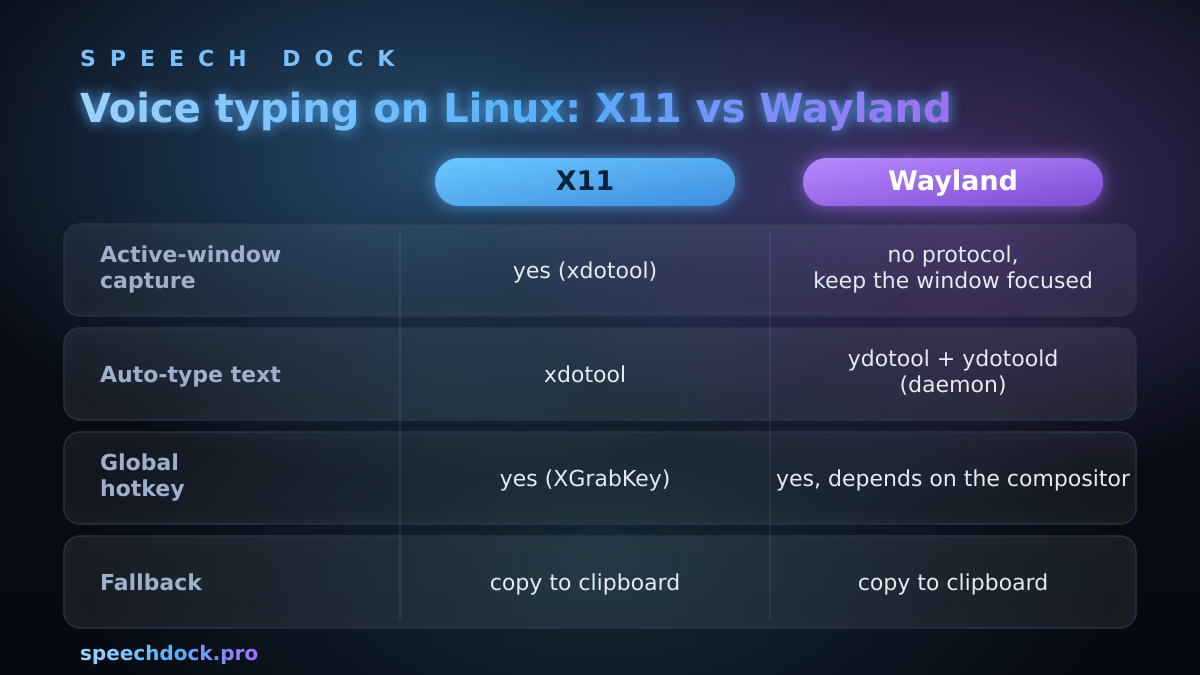
X11 is an old but still widely used windowing system. Its design is permissive: one app can happily "press keys" on behalf of the user and see which window is currently active. For voice input, that's a gift. Auto-pasting text and detecting the active window work with no extra setup at all.
Wayland is the modern replacement for X11, designed with a strong emphasis on security and app isolation. Those same principles are exactly what make auto-paste harder. By default, an app cannot simply emulate the keyboard in another window or peek at which window is active. This is not a bug but a deliberate architectural choice: a window should not know what its neighbor is doing.
So on Wayland you'll have to configure a few conveniences by hand, more on that below. In return, you get a far stricter security model across the entire desktop.
Auto-Paste: How It Works
Auto-paste is when recognized text appears right where the cursor sits, with no manual Ctrl+V. How exactly it's done depends on the windowing system.
On X11, everything works right after installation. You dictate, the text shows up in the active field, end of story.
On Wayland, you'll need the ydotool system service with the ydotoold daemon running. It gives the app a channel for input emulation through /dev/uinput. The setup is one-time, set it and forget it:
# enable and start the auto-paste daemon
systemctl --user enable --now ydotoold
On top of that, your user needs access to /dev/uinput. This is usually granted by adding the user to the input group.
And what if the daemon isn't set up? Nothing bad happens. The recognized text is automatically copied to the clipboard, and you paste it manually with your usual shortcut. Dictation works either way, only the very last step is automated.
There's one more Wayland quirk: it has no public way to find out which window is currently active. So before dictating, just make sure once that the right app is in focus, and the text will go exactly where you want it.
On-Screen Recording Indicator
When you're dictating, it helps to see that recording is actually happening. Speech Dock shows a compact indicator pill. Its behavior, as you might have guessed, also depends on the environment.
On Sway, Hyprland, and recent versions of KDE Plasma, it's a full floating indicator on top of the windows. GNOME, however, doesn't implement the windowing protocol it needs, so the pill is simplified there. This has no effect on dictation or text pasting itself, only the looks take a hit.
It's a good example of how the same feature behaves completely differently across various Linux desktops. And it also explains why a ready-made app that has already sorted out all these differences saves you a ton of time.
A Practical Workflow
Here's what comfortable dictation looks like in everyday work:
- Set a global hotkey that starts and stops recording from any app. No need to switch to a separate window.
- Put the cursor where you want the text to go. On Wayland, also make sure the right window is in focus.
- Dictate. Speak naturally; the app recognizes your speech locally and formats the text for you.
- The text lands in place. On X11 and on a configured Wayland, it pastes itself; otherwise it's already waiting for you on the clipboard.
This workflow works equally well for a quick chat message and for a long note or an email draft. The only difference is how much you've said.
What to Check Before You Start
- Whether the current build for your system is installed. The step-by-step Linux installation guide covers .deb, AppImage, and popular distributions.
- Which windowing system you're on, X11 or Wayland. This affects only auto-paste, not recognition.
- If you want automatic pasting on Wayland: whether
ydotooldis configured and you have access to/dev/uinput. - Whether you've set a convenient hotkey to start and stop recording.
In Short
The whole trick with voice input on Linux is that speech is recognized the same way everywhere, but text reaches the target window in different ways. On X11 it pastes itself, with zero configuration. On Wayland you'll have to make friends with ydotool once, and if you can't be bothered, the text still won't be lost, it'll be waiting on the clipboard.
So you can safely skip the scary stories about "voice input not working on Linux." It works. You just need to understand once which windowing system you're on and tweak a couple of small things for it. After that, you just dictate and stop thinking about it.